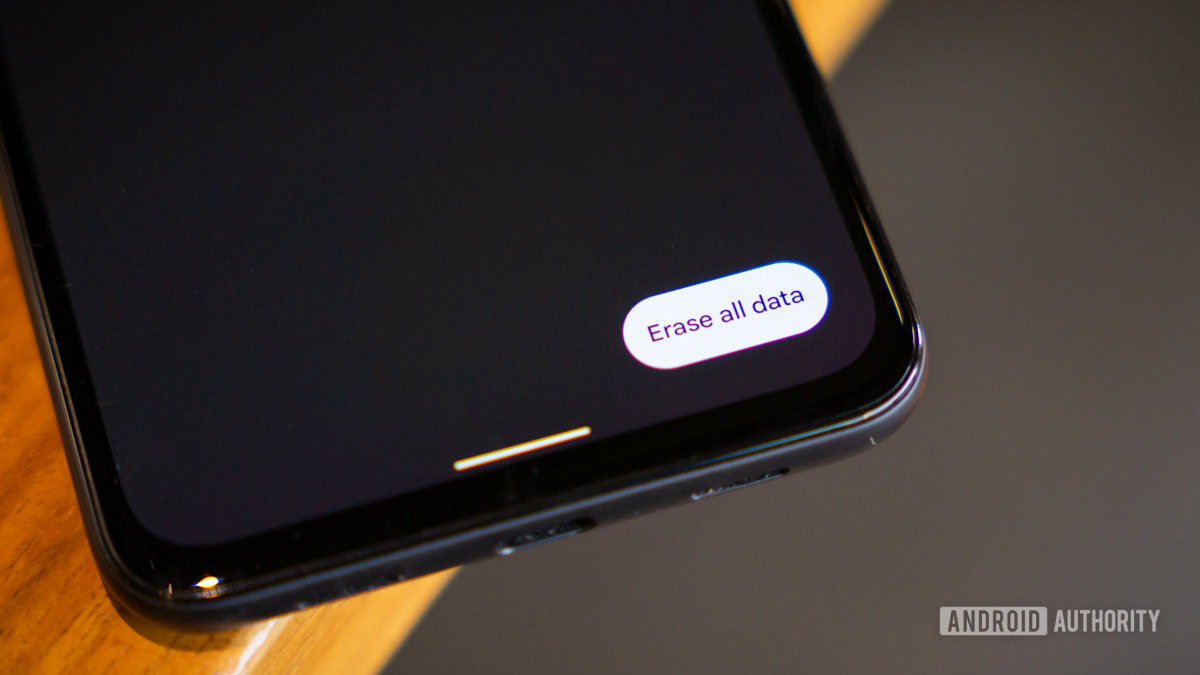
Preparing Your Android for a Factory Reset is essential for anyone looking to rejuvenate their device or resolve persistent issues. This process can feel daunting, but understanding the ins and outs makes it manageable and even empowering. With the right preparation, you can ensure that your data is safe while you restore your device to its original state, making it feel like new once again.
In this guide, we’ll dive into what a factory reset truly means, why it might be necessary, and the steps you need to take before pressing that reset button. From backing up your important data to removing accounts, we’ll cover everything you need to know to make this transition seamless.
Understanding Factory Reset
Performing a factory reset on an Android device is a significant action that returns the device to its original state, as if it just came out of the box. This process erases all data, settings, and applications that have been added since the device was initially set up, which can have profound implications for the user. Understanding what a factory reset entails and the reasons behind it is essential for anyone looking to manage their Android device effectively.A factory reset is essentially a way to restore your Android device to its default settings.
This means that all personal data, including contacts, photos, and apps, will be deleted. Users might consider a factory reset for several reasons. Common motivations include troubleshooting persistent software issues, preparing the device for resale or transfer, or simply wanting a fresh start by removing accumulated clutter. However, before proceeding, it’s crucial to weigh the potential risks and benefits.
Reasons for Performing a Factory Reset
When contemplating a factory reset, users should be aware of both the advantages and the drawbacks associated with this process. Here are some key points to consider:
- Resolving Technical Issues: A factory reset can resolve ongoing software glitches and restore functionality to a sluggish device.
- Data Privacy: Performing a reset helps ensure that personal information is not accessible when selling or giving away the device.
- Improved Performance: Removing unnecessary files and apps can lead to better system performance and storage space.
- Starting Fresh: Users can benefit from a clean slate by removing unwanted apps and settings that have accumulated over time.
While there are benefits, there are also risks associated with this process:
- Data Loss: All personal data will be erased, which can lead to the loss of important information if not backed up properly.
- Reconfiguration Time: Users will need to spend time reinstalling apps and setting up the device again after the reset.
- Potential Issues: In rare cases, a factory reset may not resolve the existing problems, leading to further frustration.
“A factory reset is a powerful tool that should be used with caution, ensuring essential data is backed up to prevent irreversible loss.”
Preparing for a Factory Reset
Before embarking on the journey of a factory reset, it’s crucial to take a few preparatory steps to ensure that your data is secure and that the process runs smoothly. A factory reset can restore your device to its original state, but it also results in the deletion of all user data. Thus, being prepared is key to a hassle-free experience.The preparation involves understanding what needs to be backed up and ensuring that all essential data is safeguarded.
This can save you from potential headaches later on when you realize that important files, photos, or contacts are missing.
Essential Steps Before Initiating a Factory Reset
Taking the necessary precautions before performing a factory reset is vital. Here’s a comprehensive checklist of items to back up to ensure that no critical information is lost:
- Contacts: Export your contacts to a Google account or save them as a VCF file to import later.
- Photos and Videos: Upload your media files to Google Photos or another cloud storage service for safe keeping.
- Documents: Use Google Drive or another file management app to back up important documents and files.
- App Data: Make sure to check if your apps support data backup through cloud services or settings within the app itself.
- Text Messages: Use apps like SMS Backup & Restore to save your messages securely.
- Device Settings: Note down or export any personalized settings that you might want to replicate after the reset.
In addition to the checklist, employing best practices can further ensure that your data remains intact. A few tips to consider include:
Always double-check that your backups are successful before proceeding with the reset.
Consider using multiple backup methods for critical information to provide an added layer of security.
If possible, keep a separate physical copy of important documents for peace of mind.
By following these guidelines, you will be well-prepared for a factory reset and can move forward with confidence, knowing that your essential data is safe and sound.
Backing Up Your Data
Backing up your data is an essential step before performing a factory reset on your Android device. This ensures that your important files, contacts, and settings are not lost in the process. There are several methods available for backing up your data, each with its own advantages and disadvantages.Android devices come equipped with built-in features that make data backup convenient.
Additionally, there are numerous cloud services and external storage options that you can utilize to secure your information. Below, we’ll explore these various methods in detail, highlighting their ease of use, speed, and reliability.
Methods for Data Backup, Preparing Your Android for a Factory Reset
Understanding the available options for data backup will help you choose the best method for your needs. The following list Artikels popular backup methods commonly used by Android users:
- Google Drive: A cloud service that automatically backs up app data, call history, and settings.
- Samsung Cloud: Specifically for Samsung devices, this service backs up photos, videos, and documents.
- External Storage (SD Card): Allows you to move files directly to an SD card for easy retrieval.
- Third-Party Backup Apps: Applications like Helium and Titanium Backup offer extensive options for data backup and restoration.
- PC Backup: Connecting your Android to a computer and transferring files directly, ensuring a comprehensive backup.
Each method has distinct characteristics that make them suitable for different scenarios.
Using Built-in Features for Data Backup
Android devices come loaded with features that simplify the backup process. Utilizing these tools can make the process more efficient and less time-consuming. Here’s a breakdown of how these built-in features work:
1. Google Account Sync By signing into your Google account, you can enable synchronization for contacts, calendars, and photos across all your devices.
2. Backup & Restore Settings Found in the settings menu, this feature allows you to back up app data, Wi-Fi passwords, and device settings to your Google account.
3. Photos and Videos Using Google Photos, you can easily back up your images and videos, allowing access from any device with your account.
Comparison of Backup Methods
To better understand the various backup methods, the following table compares them based on three criteria: ease of use, speed, and reliability.
| Backup Method | Ease of Use | Speed | Reliability |
|---|---|---|---|
| Google Drive | Very Easy | Fast | High |
| Samsung Cloud | Easy | Moderate | High |
| External Storage (SD Card) | Moderate | Fast | Moderate |
| Third-Party Backup Apps | Varies | Varies | Varies |
| PC Backup | Moderate | Fast | High |
In summary, the choice of backup method will depend on individual preferences and specific needs. It’s vital to consider the ease of use, speed, and reliability of each option to ensure a seamless backup process before proceeding with a factory reset.
Removing Accounts and Security Features: Preparing Your Android For A Factory Reset
Before performing a factory reset on your Android device, it’s crucial to remove any accounts linked to it, specifically your Google account and other personal accounts. This step helps prevent any issues that may arise after the reset, such as problems with account verification or device lockouts. Additionally, disabling security features ensures that the reset process occurs smoothly without any interruptions.Removing accounts and disabling security features are essential to safeguard your data and ease the transition back to a factory state.
By doing so, you minimize potential complications that could arise from account associations or security measures still being in place.
Importance of Removing Accounts
To avoid complications post-reset, it is critical to remove all accounts associated with your device. This not only protects your information but also ensures that your device can be set up as new without any lingering settings or restrictions.
- Navigate to Settings on your device.
- Select Accounts or Users & accounts.
- Tap on the Google account you wish to remove.
- Choose Remove account and confirm the action.
- Repeat this process for any other accounts, such as social media or email accounts.
Disabling Security Features
To ensure a seamless factory reset experience, it is necessary to disable any security features such as screen locks or encryption settings. This step can facilitate a straightforward reset and prevent any errors related to device protection.
- Go to Settings on your device.
- Scroll down and select Security or Security & location.
- For screen lock settings, tap on Screen lock and select None or Swipe.
- If your device is encrypted, under Encryption, select Decrypt device (if applicable).
- Follow any prompts to confirm your selection.
Disabling security features ensures that the factory reset can proceed without complications or interruptions.
Performing the Factory Reset
Executing a factory reset on your Android device is a crucial step when looking to refresh the device or resolve persistent issues. The process, while straightforward, can vary slightly depending on the Android version and device manufacturer. This guide walks you through the step-by-step approach to effectively perform a factory reset across various Android platforms.Accessing the settings menu for a factory reset is typically straightforward.
You will find the option to reset your device under the “System” settings. Here’s how to navigate this on different Android versions:
Step-by-Step Process for Factory Reset
The following steps Artikel how to perform a factory reset on a range of Android versions, ensuring clarity regardless of your device model.
- Unlock your Android device and navigate to the Settings app. This can usually be found on your home screen or in the app drawer.
- Scroll down and select System. For some devices, you may need to tap on General Management instead.
- Look for Reset options or Reset and tap on it.
- Select Factory data reset. Here, you’ll see a detailed description of what will be erased from your device.
- Tap Reset Phone or Erase Everything. You may be prompted to enter your security credentials, such as a PIN or password.
- Confirm the action by tapping Delete All or Reset.
For devices running Android 9.0 (Pie) and later, the process remains similar, but the terminology may change slightly. On Samsung devices, the path may differ slightly, but you can generally find the factory reset option under Settings > General Management > Reset > Factory data reset.
Common Error Messages and Resolutions
While performing a factory reset, users may encounter various error messages. Below are some common issues and their corresponding resolutions:
“Unable to reset device.”
Ensure your device is charged sufficiently and try again.
“Reset failed, please try again later.”
Restart your device and attempt the reset once more.
“Device is locked, cannot perform factory reset.”
Ensure you have the correct credentials to unlock the device.
These error messages can be frustrating, but understanding their causes can help greatly in resolving the issues quickly and effectively.
Post-Reset Setup
After completing a factory reset on your Android device, you’ll find it in a state similar to when it was first unboxed. This means you’ll need to go through the initial setup process again. Although it may seem tedious, this phase is crucial for ensuring your device functions optimally and meets your preferences.During the post-reset setup, you will need to restore your data and accounts to get your device back to its previous state.
Additionally, making some key adjustments to settings is essential for enhancing your device’s performance and ensuring a smooth user experience.
Restoring Data and Accounts
Once the factory reset is complete, the device will prompt you to select your preferred language and connect to Wi-Fi. After those steps, you will have the option to restore your data from a backup. This can significantly ease the setup process. The available backup options usually include:
- Google Backup: If you had previously enabled Google Backup, you’ll be able to restore apps, contacts, and other data linked with your Google account.
- Local Backup: If you created a local backup on your computer or external storage, you can manually restore that data during the setup.
- Third-Party Backup Apps: If you used any third-party apps for backup, ensure to reinstall those apps and follow their specific restoration process.
After completing these steps, you’ll need to log back into your Google account and any other accounts you used previously. This includes social media, email, and any application accounts that require authentication.
Adjusting Key Settings
Once your accounts and data have been restored, the next step is to adjust some essential settings to optimize your device’s performance. Adjusting these settings can help extend battery life, enhance security, and improve overall usability. Focus on the following:
- Display Settings: Customize brightness, font size, and screen timeout duration for better visibility and comfort.
- Battery Saver Mode: Enable this feature to prolong battery life, especially if you find yourself frequently away from a charger.
- Security Settings: Re-establish your preferred security methods, including screen lock options (PIN, pattern, or biometric) to safeguard your data.
- App Permissions: Review and adjust app permissions to ensure privacy and security, only granting necessary access to your personal information.
- Notifications: Configure notification settings for apps to reduce distractions and prioritize important alerts.
By attending to these key areas immediately after your factory reset, you can enhance the performance of your Android device and create a user-friendly environment that aligns with your needs.